Recognizing that locating our public schools can be a challenge for stakeholders, we are committed to providing an intuitive, one-click solution by using school coordinates. This will significantly improve accessibility and encourage increased engagement with our schools
What are the specific steps for extracting school coordinates accurately using Google Maps?
Method 1: Using Right-Click (Desktop)
- Open Google Maps: Go to https://www.google.com/maps in a web browser.
- Find the School: Search for the specific school by name or address.
- Pinpoint the Location: Ensure the school is visible on the map. Zoom in if necessary to
precisely locate the school building or campus.
- Right-Click: Right-click directly on the school’s icon or building on the map. A context menu
will appear.
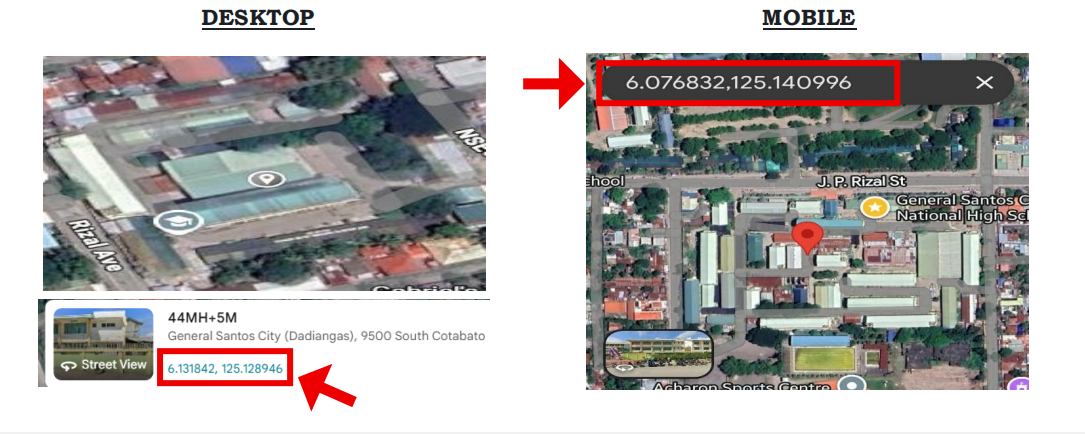
- Copy the Coordinates: The coordinates (latitude and longitude) will be displayed at the top of
the menu in decimal degrees format. Click on the coordinates to copy them.
- Paste: Paste the copied coordinates into your desired document and paste it in the “location”
box.
Method 1: Using Long-Press (Mobile)
- Open Google Maps: Open the Google Maps app on your mobile device.
- Find the School: Search for the specific school by name or address.
- Pinpoint the Location: Ensure the school is visible on the map. Zoom in if necessary to precisely locate the school building or campus.
- Long-Press: Tap and hold (long-press) on the school’s location until a red pin appears.
- Copy the Coordinates: After the pin drops, the coordinates will appear in the search bar or within an info panel at the bottom of the screen. Tap the coordinates to copy them.
- Paste: Paste the copied coordinates into your desired document and paste it in the “location”
box.
Method 2: Using the “What’s Here?” Option (Desktop)
- Open Google Maps: Go to https://www.google.com/maps in a web browser.
- Find the School: Search for the specific school.
- Click on the School: Click directly on the school’s icon or building on the map.
- “What’s Here?”: A small information panel will appear at the bottom of the screen. Look for a “What’s here?” link or text within the panel and click on it.
- Copy Coordinates: The coordinates (latitude and longitude) will be displayed in the information panel. Copy them.
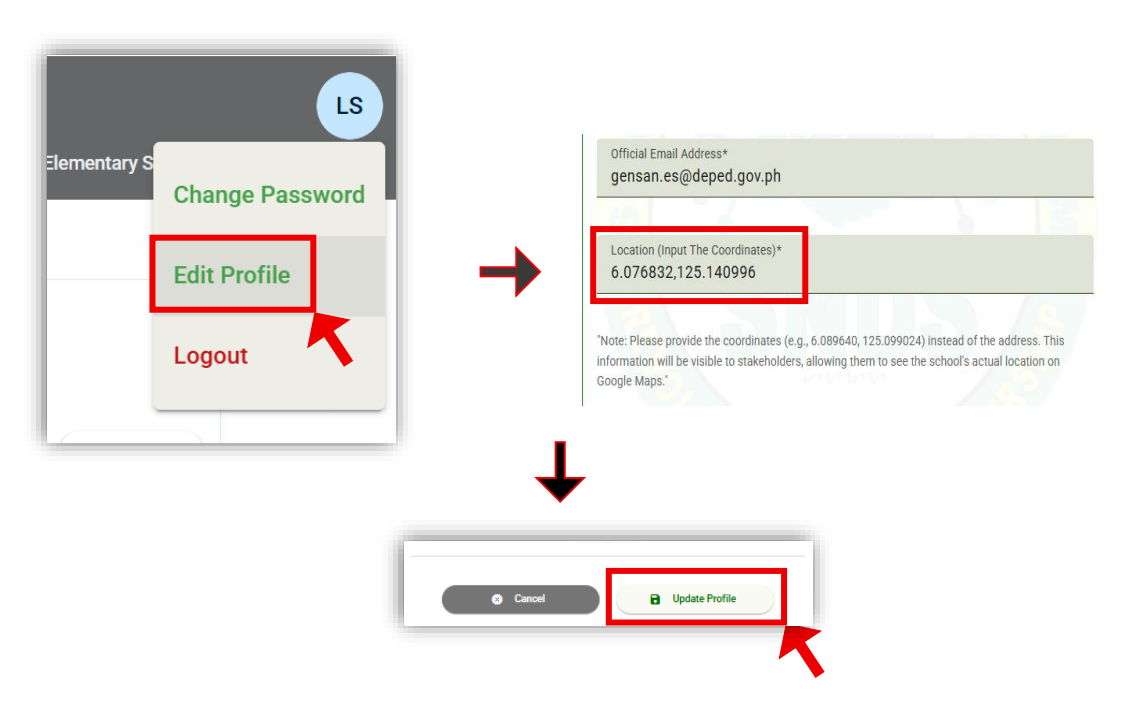
Process steps in uploading School Profile.
1. Go to your school account.
2. Click logout button and select “edit profile”.
3. Scroll down to and select “location” box.
4. Paste the copied coordinates into your desired document and paste it in the “location”
box.
5. Click “update profile” button
6. End of the process.
Last updated on